If you work with data as a journalist, it won’t be long before you come across the phrases “dirty data” or “clean data”. These terms cover a wide range of issues and various techniques to address them, so in this post I’ll examine exactly what makes data “dirty” and the different cleaning strategies a journalist might use to deal with it.
Summary
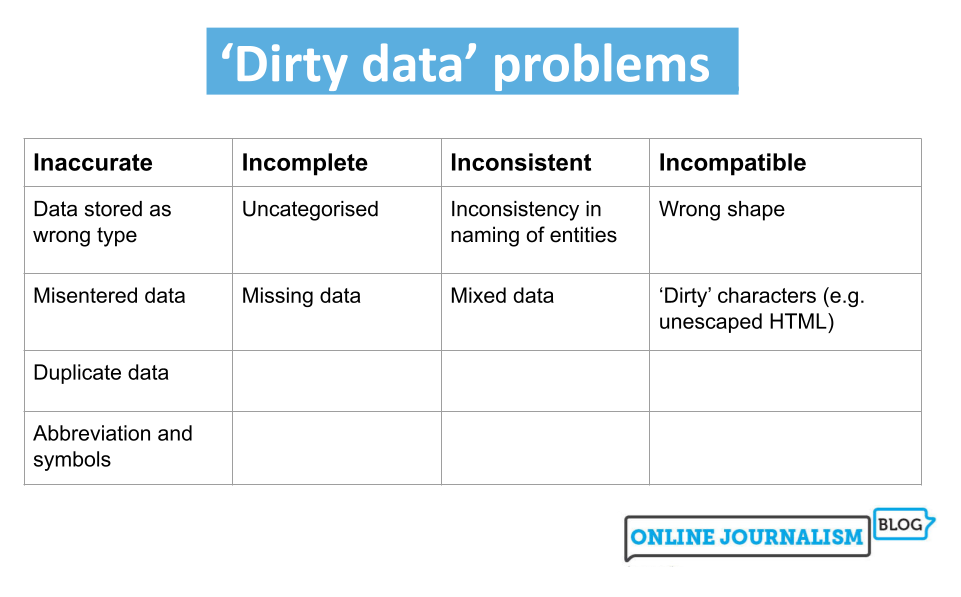
Four categories of issues with dirty data
Look up definitions of dirty data and you’ll find the same three words: inaccurate, incomplete or inconsistent.
Inaccurate data includes information that is duplicated or entered incorrectly or data stored with the wrong data type.
Incomplete data may only cover certain time periods, areas, or specific categories, or may lack categorization entirely.
Inconsistent data may refer to the same entities in different ways or mix together different types of data.
To these three common terms I would also add a fourth: data that is simply incompatible with the questions or visualizations we want to perform with it. One of the most common cleaning tasks in data journalism, for example, is to “reshape” data from long to wide, or vice versa, so it can be aggregated or filtered by particular dimensions. (More on this later).
Detection and correction: wrong data type and incorrectly entered data
The first clue that you have dirty data is when it doesn’t appear or behave as you expect. Anyone importing stop and search data from the UK Police data portal into Excel, for example, might notice that one category in the age column shows up as “October-2017.” Why would that be an age category?
The answer is, it isn’t: Excel interprets “10-17” as a date. (In 2020, scientists even went so far as to rename human genes to avoid this common problem, which is estimated to have affected hundreds of research studies). Or you might try matching company numbers and discover that some do not work as they should.
This could be because codes like business numbers are often stored as numbers numeric by spreadsheets, resulting in any zeros at the beginning being dropped. Those zeros are important: a company number, it turns out, is not a number, but a code.
The problem in both cases is that the data is stored as the wrong type and this is something you should systematically check every time you import or open data by proceeding as follows:
Look in each column to verify that all entries are aligned as you would expect. Excel will align numeric values (including dates) to the right and text to the left. If the data is not aligned as it should be (company numbers should be left-aligned and dates to the right), then you have dirty data.
Sort the column (ascending and descending): text is sorted differently than numbers, so sorting will help surface any unexpected values. If you have a column with a mix of numbers and text, the numbers will be sorted before the text (and vice versa if you sort in descending order).
Add a data validation column : functions like ISNUMBER and ISTEXT will return TRUEor FALSEdepending on whether the specified cell contains that type of data: for example, =ISNUMBER(A2)will return TRUEif A2 contains a number and FALSEif not. You can drag the formula down a new column to get a result for each cell in the neighboring column you’re checking.
Add a data measurement column : a useful one is the LEN function to tell you how many characters are in a cell (including spaces), allowing you to sort again by this to bring unexpectedly long or short data (such as inconsistent codes) to the top.
Sorting will help you gather all the dirty data together to clean it, either manually for a limited number of errors, or by using Find and Replace to clean up one or two errors on a larger scale or problematic characters like currency symbols. More complex problems might require creating formulas in the spreadsheet to, for example, replace missing zeros, substitute “thousand” with “000”, remove non-printable characters or convert date formats.
When sorting a column, also pay attention to numbers that are much larger or smaller than the rest that could realistically have been entered incorrectly (for example, a decimal digit is missing). In this case, you might contact the source to verify if the specific figure is correct.
Before correcting any dirty data, remember to format the data type of the entire column to prevent it from happening again: to do this, right-click the column and select Format cells. Then choose the appropriate data type.
Google Sheets has similar formatting features, plus a new option for data cleaning (in the menu Data) which will remove duplicates.
Identifying and correcting inconsistent data
Sometimes, entities in a dataset are named inconsistently: a coffee shop might be called Starbucks in one row, but Starbucks Coffee in another, and Starbucks Coffee Ltd in yet another.
This can cause problems if we want to perform some sort of aggregated analysis that treats them all as the same entity (this issue often becomes obvious when creating a pivot table: entities with similar names will take up separate rows when we want them all counted together).
One of the best tools for tackling this problem is Open Refine and its “Cluster and Edit” tool: this groups similar entries in a column using one of several algorithms: you could ask it to group names that sound similar using the “phonetic fingerprint” algorithm, or words sharing most of the same characters using the “N-gram fingerprint” algorithm.
You don’t need to understand the algorithms: Open Refine presents you with the resulting clusters and you can choose to clean them so all entries within that cluster are the same, or leave them as they are.
An extra whitespace, for example, can cause your spreadsheet to treat two entities separately (because one has a space where the other does not). Google Sheets’ data cleaning suggestions will find and remove these for you.
Inconsistent use of capitalization is another common issue: this can be fixed with a new column that uses the PROPER or LOWER functions. These will take the formula’s content and format it consistently in the “proper” case (each word starts with a capital letter) or in lowercase. You can also solve other issues, such as using different words for the same thing (“&” versus “and”, for example, or “Ltd” versus “Limited”) with Find and Replace or with the SUBSTITUTE function.
Identifying and correcting mixed data
Another common problem encountered in datasets is when data is mixed together in the same column. Sometimes this is less obvious, like in the case of an address column mixing the street name with the city and zip code, while sometimes it is more evident, as when a column mixes general categories with subcategories.
Generally, you notice this when you want to analyze one aspect of the mixed data and have to separate it somehow to do so.
The “Text to Columns” button in Excel is particularly useful for splitting mixed data. This allows you to divide a column into multiple columns based on a specific “delimiter.”
For example, if a column always uses a comma after the street name and before the city name, you can use the Text to Columns wizard to use that comma as a “delimiter” to place them in separate columns. Similarly, if there’s a space between the first and second parts of a postcode, that space can be used as a delimiter with similar effects.
Some mixed data issues are so common that tools and code libraries have been developed specifically for them: Parserator is an online tool for “parsing” addresses into their individual components; whereasprobabilipeople is a library Python for name analysis and humaniformatis an equivalent in R.
For bigger challenges, you might need the faceting and filtering functionality of Open Refine (this is particularly useful when categories and subcategories are mixed, for example).
Poorly formatted spreadsheets are a particularly common challenge in data reporting. Governments are known for releasing spreadsheets where column headers are not in the first row, where the headers might span multiple rows, and where even header cells might be merged.
All of these factors can make it difficult or impossible to sort and filter the data, or to create new columns that can extract or validate such data.
A good rule of thumb when opening such a data set is:
Make a copy of the spreadsheet
Remove any rows before the column headers
Remove all empty columns (Excel will treat them as the end of a table) and any columns you don’t need
If the headers are spread over multiple rows or merged cells, create a “clean” header row so the header data is preserved, then delete the old rows/cells.
Open Refine is, once again, very useful for dealing with many of these issues. Its import wizard lets you specify whether you want to skip rows before the header row, whether you want to take headers from multiple rows, and whether to ignore empty rows.
Data in the “wrong” shape and the principles of “tidy data”
The three rules of tidy data by Hadley Wickham
A slightly different issue occurs when data comes in the “wrong” shape. There are two main categories of shape problems: data is “long” when you want it “wide,” or vice versa.
For example, you may want to create a dataset with a column showing totals for each year (you want to widen the data), but the data instead has a “year” column, which makes it very long. In this situation, creating a pivot table (with “year” in the columns box) will often reshape the data for you.
A more complicated challenge arises when the data is wide, for example having a different column for each year, and you want it long to perform different analyses. It’s a bit like reverse engineering a pivot table, converting each of those “2018,” “2019,” “2020,” and so on columns into values within a column called “year.”
Doing this often requires some coding, and both R and Python have code libraries dedicated to this particular problem. In Python, you can use the melt and pivot functions from the pandas library to reshape from wide to long or vice versa; in R, the pivot_longer andpivot_wider functions from the tidyr package will do just that.
In the example above, “year” is a variable, not a value, so it should be a column. And 2020 is a value, not a variable, so it should be in a cell, not in the column name. Following these rules when creating your own data can ensure that it is easy to analyze and help you avoid many problems later on.
Before you start: do you *really* need to clean it?
One last note about all this: cleaning can be very time consuming, so don’t undertake major cleaning unless you know that you absolutely need the data to be as clean as you think.
Often when working with data, there are only a few columns that are actually important to our story, so you might spend hours on a cleaning challenge only to decide later that you didn’t need to clean that column of data for the story.
Likewise, spending a little time thinking about different ways to approach data cleaning can save you a lot of time later on. Tools like Open Refine may take a bit of time to learn, but you’ll often save that time and more by being able to use them instead of cleaning the data manually.
Usiamo cookie per ottimizzare il nostro sito web ed i nostri servizi.
Funzionale
Always active
L'archiviazione tecnica o l'accesso sono strettamente necessari al fine legittimo di consentire l'uso di un servizio specifico esplicitamente richiesto dall'abbonato o dall'utente, o al solo scopo di effettuare la trasmissione di una comunicazione su una rete di comunicazione elettronica.
Preferenze
L'archiviazione tecnica o l'accesso sono necessari per lo scopo legittimo di memorizzare le preferenze che non sono richieste dall'abbonato o dall'utente.
Statistiche
L'archiviazione tecnica o l'accesso che viene utilizzato esclusivamente per scopi statistici.L'archiviazione tecnica o l'accesso che viene utilizzato esclusivamente per scopi statistici anonimi. Senza un mandato di comparizione, una conformità volontaria da parte del vostro Fornitore di Servizi Internet, o ulteriori registrazioni da parte di terzi, le informazioni memorizzate o recuperate per questo scopo da sole non possono di solito essere utilizzate per l'identificazione.
Marketing
L'archiviazione tecnica o l'accesso sono necessari per creare profili di utenti per inviare pubblicità, o per tracciare l'utente su un sito web o su diversi siti web per scopi di marketing simili.